
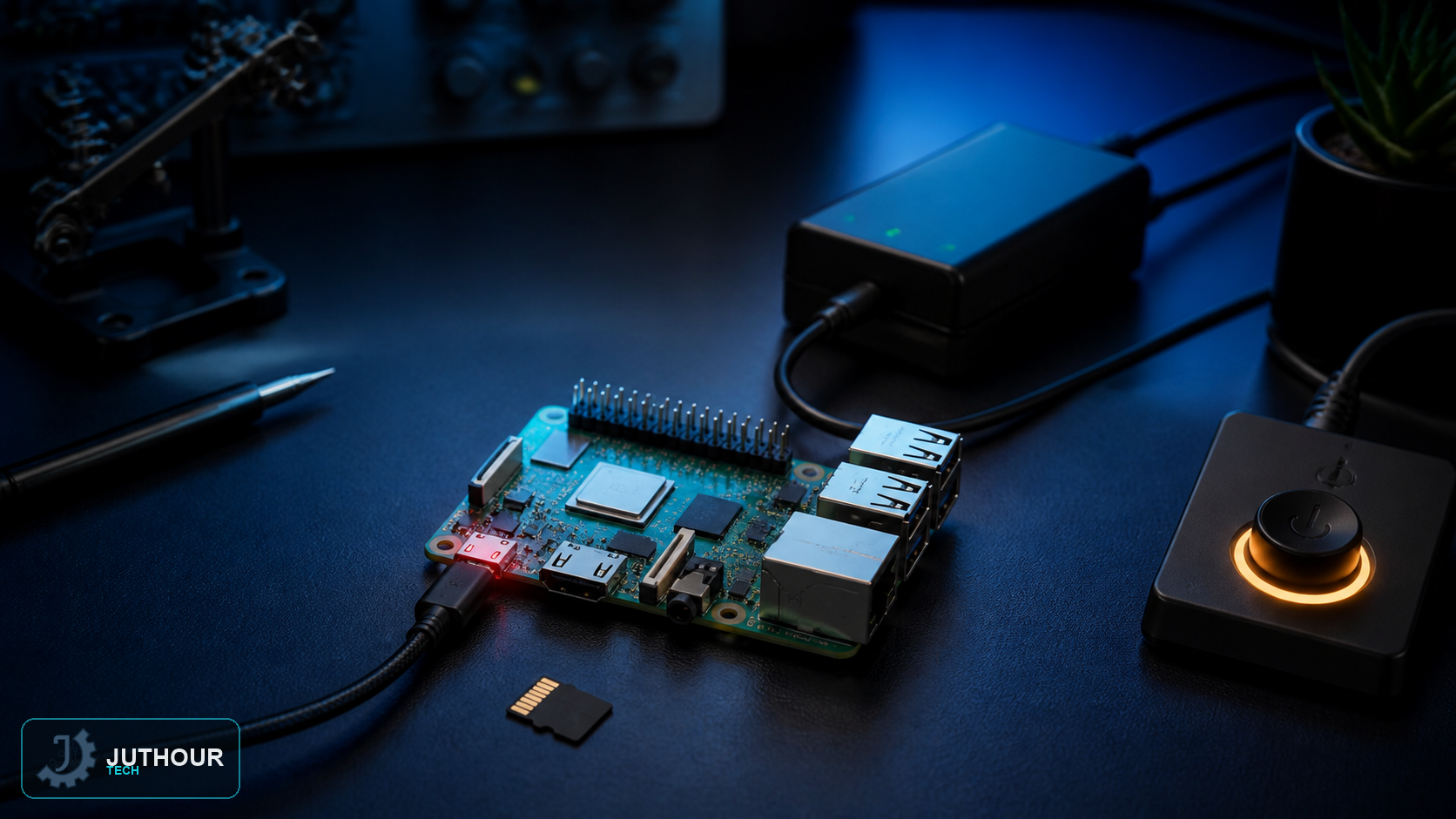
Removing power while Raspberry Pi OS is writing can corrupt files or the filesystem. A controlled shutdown stops services, flushes buffered writes and unmounts storage before the supply is disconnected.
Shut down from the desktop
Open the system menu and select Shutdown. Wait for the display or remote session to close and for storage activity to stop. The desktop action performs the same operating-system shutdown sequence as the terminal command.
Shut down from Terminal or SSH
sudo shutdown -h nowFor a scheduled shutdown, replace now with a supported delay such as +5. Your SSH connection will close as the system halts.
Reboot safely
sudo rebootRebooting also flushes and unmounts filesystems before restarting. It is the right operation after updates when you do not need to remove power.
When is it safe to disconnect power?
LED behaviour differs by Raspberry Pi model, firmware and configuration, so one fixed blink pattern is not universal. Wait until the terminal or SSH session has closed, HDMI output has ended where applicable, and the activity LED has stopped showing storage writes. Allow a few additional seconds before disconnecting the supply.
Improve resilience
Use a correctly rated supply, a reliable microSD card and a UPS or supervised shutdown circuit where power can fail unexpectedly. A physical switch should request an operating-system shutdown; it should not simply cut the supply line.
Leave your comment